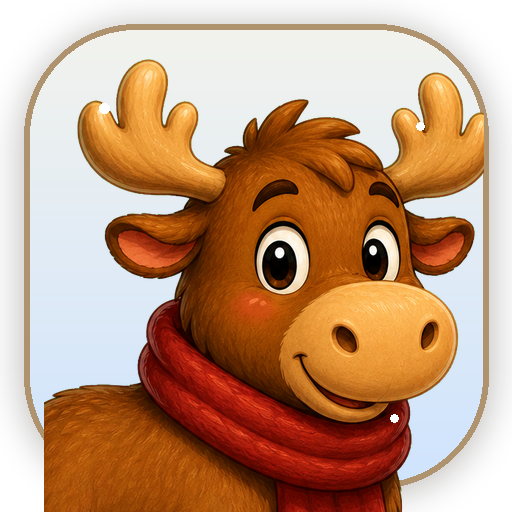
Put Moosi on your home screen
Install Moosi's Story to play full-screen, like a real app. The home screen opens vertically, and landscape games ask you to rotate only after you choose them.
Done You're all set
It looks like Moosi's Story is already installed (or running as an app). Open the home screen
iOS iPhone & iPad
- Open this page in Safari (the install option lives there).
- If the Share button is not visible, tap ... in the Safari toolbar first.
- Tap Share — the square with an arrow pointing up.
- Scroll down and tap Add to Home Screen.
- Tap Add. Moosi appears on your home screen — launch it for full-screen play.
iOS doesn't offer one-tap install, so these few steps are the way. Moosi opens to the vertical home screen first.
Android Android
- Tap the Install the app button above. If you don't see it, use the browser menu ⋮.
- Choose Install app (or Add to Home screen).
- Confirm. Moosi lands on your home screen and opens full-screen.
On most Android browsers this is a single tap.
Desktop Desktop (Chrome / Edge)
- Click the Install the app button above, or the install icon at the right end of the address bar.
- Confirm Install. Moosi opens in its own window.
Offline Good to know
After your first online visit, the title screen and chapters you've played are cached, so the game still opens without a connection. The full art set isn't pre-downloaded, so brand-new chapters need a connection the first time.